
Create mockups of t-shirts, websites, posters, and more using images, or designs. Try out some video mockups to help improve the visual appeal of your design.
Pro or paid mockups are tagged with a crown icon.
From the editor
The Mockups app on the editor is available for both desktop and mobile.
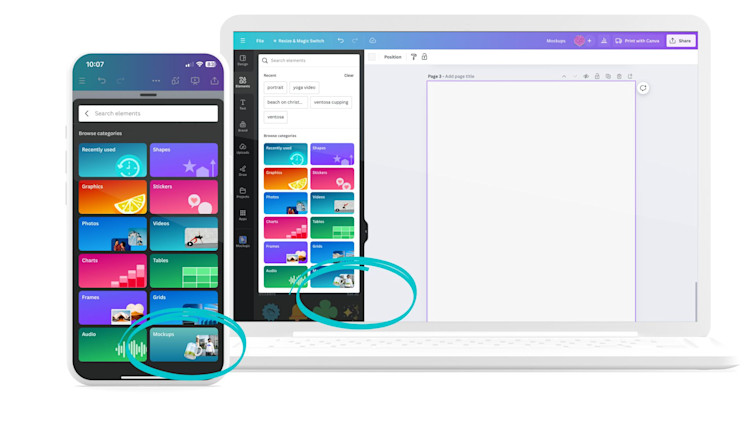
- On the editor side panel, click Elements.
- Select the search bar at the top of the Elements panel, and select the Mockups Category that’ll appear.
- Alternatively, scroll down the Elements tab until you find the Mockups section, then click See all to view more options.
- Select your chosen mockup and drag and drop any image into the mockup from the Uploads tab.
- From the Uploads tab, click on the image you want to use for your mockup. If you haven’t uploaded it yet, click on Upload files first.
You can also access Mockups via the Apps tab by click on the Apps tab on the left sidebar. Use the search bar within the Apps tab and type in Mockups and hit enter to search.
To change the size, alignment, or orientation of the design, double-click the mockup to edit. You can use either Fill, Fit, or Smart Crop to automatically crop and rotate your design. Once you’re done making the adjustments, select Apply changes.
From the photo editor
The Mockups app on the photo editor is available for both desktop and mobile.
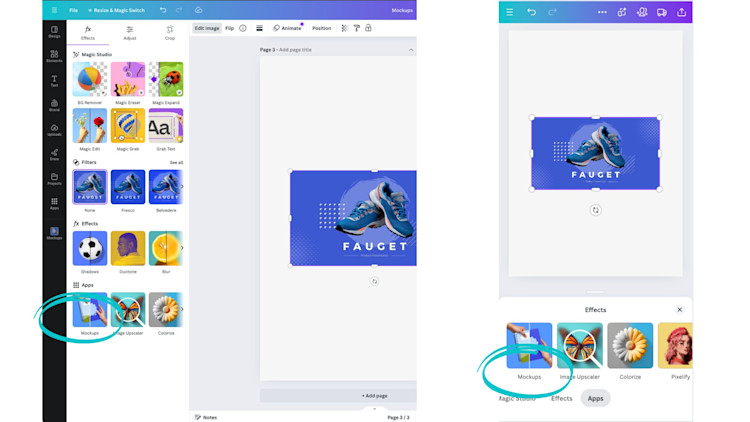
- From the editor, click the photo you want to edit.
- On the toolbar above the editor, click on Edit image.
- Under Apps, select Mockups.
- Scroll through the available mockup options including video mockups. Based on your location, you’ll see mockup recommendations unique to your region. You can also click See all to find more options.
- Select your chosen mockup and drag and drop any image into the mockup from the Uploads tab.
- From the Uploads tab, click on the image you want to use for your mockup. If you haven’t uploaded it yet, click on Upload files first.
Detaching an image from the mockup:
- While in the Mockups tab, select the mockup in your design.
- Select the Detach image button.
To reposition or crop the image, click the mockup and then adjust the options that appear. When you're finished making the changes, click Apply changes.
Creating custom mockup templates
Creating custom mockup templates is available to those with Pro, Teams, Enterprise, Education, and Nonprofit subscriptions. You can access this feature through the Apps tab or by selecting Edit on a photo.
This feature isn’t available to everyone just yet, but we're working on getting it to the whole community. Keep an eye out for updates—it’ll be available to you soon!
Creating custom mockup templates is currently available to our premium community. You can access this feature through the Apps tab or by selecting Edit on a photo.
- Add the photo you want to turn into a mockup template to your design.
- Select the image, then click Edit from the toolbar that’ll appear.
- Under Apps, find and select Mockups. Now, click Create Your Own Mockup.
- Canva will analyze your photo and identify the best surfaces for product placement. Just note that premium photos won’t work for this feature—you’ll need to use your own photos or filter for free ones in Canva’s library.
- Once your mockup is ready, drag and drop your design onto it. You can adjust how it fits using Fill, Fit, or Smart Crop.
You can flip, align, or further customise your design until it’s just the way you want it. Once everything looks perfect, click Apply Changes.
If you want to change the design later, just click Detach Image and swap it out with a new one.
Access mockups via the Apps tab
- On the editor side panel, select [token: AppsIcon | size: M] Apps.
- Use the search bar and type in Mockups and hit enter to search.
Mockups might not look as polished with busy or complex images, so it's best to use clear, high-resolution photos with simple, flat surfaces for better results. Since Premium Photos aren’t supported right now, we recommend using your own images or filtering for free ones in Canva.
Pro Tips for Using Custom Mockups
Want your mockups to really pop? Here are some tips to get the most out of this feature:
- Choose Flat, Simple Surfaces: Photos with flat surfaces, like blank mugs or clean device screens, work best for mockups.
- Avoid Cluttered Backgrounds: A simple background helps the product placement look more natural and professional.
- Use Canva’s Editing Tools: Features like Smart Crop and Alignment are great for adjusting your design to fit the mockup perfectly.
From the homepage
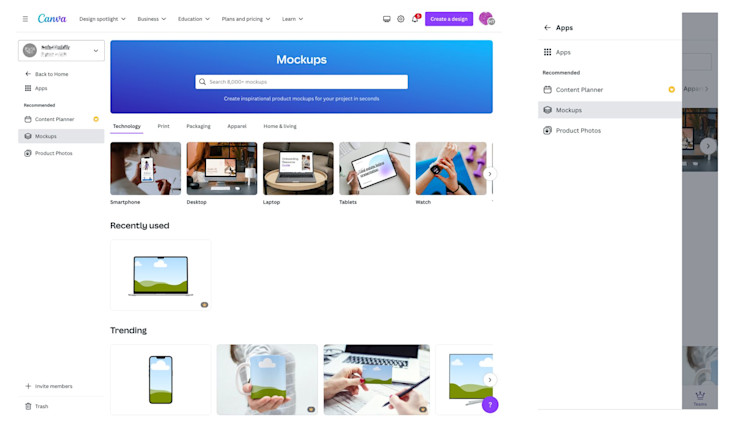
- From the homepage side menu, click Apps.
- Select Mockups.
- Use the search bar to look for a mockup you want to use, or select from the options below it.
- To use a mockup, click on its thumbnail.
- Click Select to choose an image or design to use in your mockup.
- To use an image, click on it from the Uploads tab. If you haven’t uploaded it yet, click on Upload first.
- To use a design, click on it from the Designs tab. If the design has multiple pages, click on the thumbnail of the page you want to use.
- Click Select.
To change the size, alignment, or orientation of the design, select Edit. You can use either Fill, Fit, or Smart Crop to automatically crop and rotate your design.
To manually resize your design, select the resize handles. Afterward, drag your design to your desired position. Once you’re done making the adjustments, select Apply changes.
The Colour options feature is available for apparel mockups. You can adjust the colour of your apparel mockups by clicking the colour tile, then selecting your preferred colour or using the Eyedropper tool.
To save your mockup, click on Save mockup.
If you want to use your mockup in a new design, select Use in a design. This will let you create a new design and automatically add an image of your mockup.
If you want to download your mockup, select Download.
Comments
0 comments
Article is closed for comments.