
I can’t download my design or video
If you’re having trouble downloading a design or getting download error messages like “We are unable to download your design” or “An error occurred”, here are some things that you can try.
Download your design from the homepage
If you can’t download your design from the editor, you can try downloading it from the homepage. Here’s how:
- Find the design you want to download from your Canva homepage or folders.
- Hover over its thumbnail, and select the More icon that appears.
- Select Download.
- Choose a file type for your download. If your design has multiple pages, select the pages you want to download from the dropdown.
- Click Download.
Check Canva’s status
Visit the Canva Status page. If it says All Systems Operational, it means things are working on our end.
Try downloading your design again after a while.
Check your internet connection
A stable internet connection is important for your designs to download successfully.
To check if your internet connection is stable enough, try to manually save your design first.
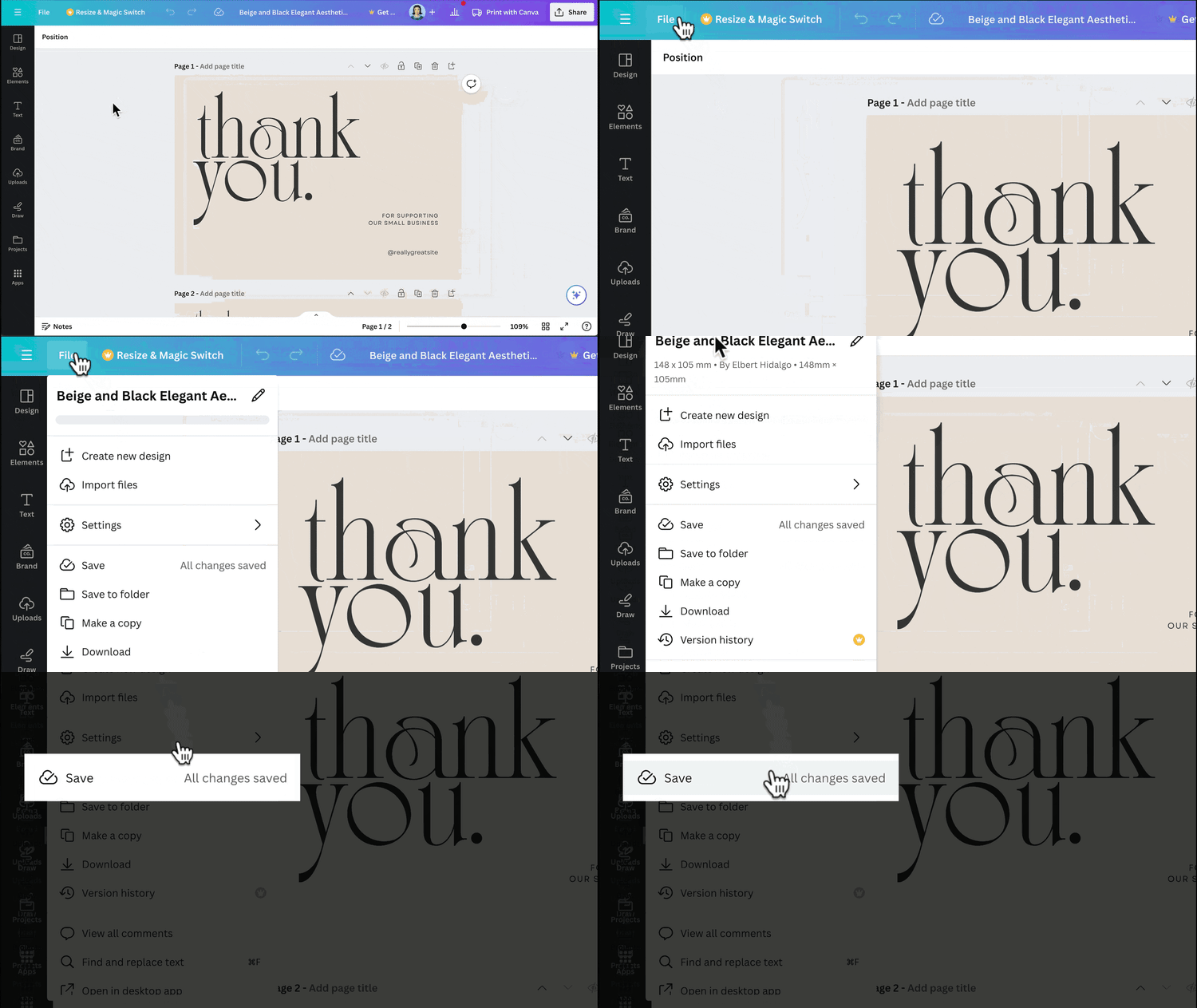
On the editor menu bar, click on File, and then on Save.
If your design doesn’t save, it means your internet connection isn’t stable.
If you encounter a "Reconnecting" message while you're downloading your design, this means that your network has timed out.
If your internet connection is working properly but you still can’t download, see below for other things you can try.
Check your design’s file size and elements
If your download takes too long, your design’s file size might be too big. This happens when your design has a lot of pages or if you used a lot of images, elements, videos, or animated text.
You may also encounter issues if you’re using premium elements on a free account.
Here are a couple of workarounds you can try.
Download your design in batches
- On the editor menu bar, click Share.
- Click Download.
- From the Select pages dropdown, select a few pages to download in one batch.
- Click Download or Pay and download, then repeat for the other pages.
Split your design into separate files
- On the editor menu bar, click on File.
- Click Make a copy.
- Download the designs after checking that they have 10 pages or less.
Remove premium elements
If you’re on a free account, your designs can’t be downloaded if they have premium elements. To remove them:
- Select the premium element.
- Click the trash icon to delete it.
If you can’t find the premium element on your design:
- Select any random element.
- Click Position on the top menu bar.
- Go to the Layers tab and check the elements on each layer.
- Once you find the layer where the premium element is located, click and hold the icon and drag the layer to the top of the Layers tab.
The element will now be on the first layer of your design. Click the trash icon to delete it.
On another hand, if your design is empty, you won't be able to download your design. Add elements to your page first.
Design export size limitation
If you can’t download your design, you might have exceeded the allowed dimensions.
- Minimum: 40 x 40 px, Maximum: 8000 x 3125 px (or vice versa).
- For larger designs, scale down your dimensions proportionally within these limits. Learn more on our Designing from scratch page.
Check your videos’ file size and elements
For videos, the video length and its frame rate can also affect the processing for download.
Embeds aren’t found within Canva, so downloading designs with YouTube embeds will fail. Upload MP4 files that you want to use in Canva instead.
To help with your download, here are some things to try:
- Keep or trim your video to 30 minutes or less, if possible.
- Reduce resolution down to 1080p (1920×1080), if possible.
- Break down large blocks of animated text into several text boxes.
- Share a watch link instead of downloading your design.
- Make sure your images and videos are completely uploaded.
- Try downloading on a different device.
If you also have hundreds of elements in your design, they may cause issues with exporting videos. Reducing the number of elements may help.
If there's only one image or graphic on your design
If you’re trying to download a single image or one premium element, you’ll see this error: “There’s only one image or graphic on your design. Premium images can’t be exported on their own. Add some elements and then try again.”
Canva is responsible for protecting the intellectual property rights of our contributors, partners, and our own content. You can only use premium stock media licensed under Canva’s Content License Agreement in one design. This license doesn’t include the right to download premium stock elements as-is.
To continue, add more elements like text, graphics, lines, etc. then try downloading it again.If you’d like to learn more about our Free and Pro content licenses, see Content licenses and using Canva for commercial purposes.
Check your device or browser
If Canva is crashing when you try to download your design or video, it’s likely there’s a problem with your device or browser. Try updating your browser to its latest version or switch to a different browser or device.
For more things that you can try, see Canva is crashing or freezing when I use it.
Try refreshing your browser and clearing your cache and cookies
Accumulated cookies can sometimes cause trouble. Note that doing this may log you out of other sites.
If you still need help downloading your design, contact our Support Team. Please be as detailed as possible in your request. Make sure to include the following:
- Link to your design
- Screenshot of the error message you’re seeing (if you see one)
- Troubleshooting steps you’ve tried
Related articles:
Was this helpful?
People also viewed
My video won’t play back
If you can't play, edit, or download your videos, in your design or if your download is failing, it’s possible you added videos to your design from another device using the camera roll or photo gallery. If you received a shared design and are facing issues, kindly request the owner of the design to follow the steps below: To fix this, return to the design on your original device where you added the video and select the Uploads icon in the top right corner of your video. If you’re having trouble uploading your files, check our Upload formats and requirements article to see if your file type or size is accepted. To avoid these errors in the future. We suggest adding videos to your design by following the steps below: Uploading videos on Mobile At the bottom corner of the editor, tap the button . Select the Uploads tab. Tap Upload files , and select the file that you want to upload. If it’s your first time, you may be asked to give Canva access to your gallery. To use your upload in your design, tap on it from the Uploads tab. Deleted video If you're unable to play, edit, or download your videos, it might be because you deleted the video from your device. To resolve this, simply go back to your camera roll or photo gallery and restore the deleted video. I can't download my design with videos If the video in your design isn’t playing or you’re unable to download it, please refer to this article: I can’t download my design or video My video has a low-resolution If your video plays but has a low resolution while editing, it may be due to: your internet connection, or the uploaded video's resolution is higher than what we support We currently support up to 1080p Full HD Resolution. If your video is playing at a low resolution due to your internet connection, here’s how you can adjust the playback quality. From the editor, go to File. Select View settings . Click on Video playback quality . From here, you can choose between Low, Medium, High, or Auto. Choosing your video playback quality If you'd like the best resolution, choose High . Note that if your internet connection is poor, you may experience more pauses on this setting. If you want to save data, select Low . Alternatively, you can choose Auto , and we'll adapt your streaming rate to create the best overall experience.
Downloading designs as video or GIF
Easily download your designs in video format. Open the design you want to download. Optional: Above the video editor , click to preview your design. Above the editor, click Share , and select Download . Select the file type you want to download your design in. If you used audio, select MP4 Video . Click Download . If you used paid elements, click Pay and Download . Open the design you want to download. Optional: Above the video editor , tap to preview your design. Above the editor, tap , and select Download . Select the file type you want to download your design in. If you used audio, select MP4 Video . Tap Download . If you used paid elements, tap Pay and Download . If the error icon shows up on your video, follow the steps found in My video won’t playback . If you used premium or paid audio If you used paid audio and if you’ll be posting your design on social media and video sharing sites, verify your license when downloading to avoid copyright claims . Video and GIF download limits Canva Free users can download the following video files. MP4 videos up to 30 minutes in length with a max resolution of 1920 * 1080px GIFs up to 1 minute in length with a max resolution of 1280 * 720px While Canva Pro, Canva Teams, Canva for Nonprofits, and Canva for Education users can download the following video files. MP4 videos up to 2 hours in length with a max resolution of 3840 * 2160px GIFs up to 2 minutes in length with a max resolution of 1920 * 1080px If you’re having problems downloading your design, head over to I can’t download my design or video or Lines, texts, or images moved during download for solutions.
Images disappear when I download my video
We’re aware of an issue where images and elements added disappear or turn white when downloading videos and animations. This issue seems to be affecting the iOS app. We understand how frustrating this is. Our team is working on a solution, and we hope it'll be resolved in the near future. For now, here are some steps you can try to fix it: Force close your app. Close extra apps that you're not using at the moment. Switch your internet connection from mobile data to Wi-Fi. Clear Data by going to Settings > Apps & notifications > App Info > Canva > Storage > Clear Data . Restart your phone. Try downloading your design again. To get the best experience from Canva, remember to keep your app updated regularly. As a workaround , you can also download your design using any of the following supported browsers: Google Chrome, Safari, Mozilla Firefox, and Microsoft Edge. If the error icon shows up on your video, follow the steps found in My video won’t playback . Related article: Elements are missing from my download
Download video as separate files
Easily download your designs in MP4 format as separate files. Open the design you want to download. Above the editor, click Share , and select Download . Select the file type you want to download your design in. If you used audio, select MP4 Video . Optional: Tick Download pages as separate files if you want to download your files separately. Click Download . If you used paid elements, click Pay and Download . Open the design you want to download. Above the editor, tap , and select Download . Select the file type you want to download your design in. If you used audio, select MP4 Video . Optional: Tick Download pages as separate files if you want to download your files separately. Tap Download . If you used paid elements, tap Pay and Download . Our team is currently working on bringing this feature to iOS soon. A note on using premium/paid audio If you used paid audio and are planning to post your design on social media and video sharing sites, you’ll need to verify your license when downloading to avoid copyright claims . Video download limits Canva Free users can download the following video files: MP4 videos up to 30 minutes in length GIFs up to 1 minute in length Canva Pro, Canva Teams, Canva for Nonprofits, and Canva for Education users can download the following video files: MP4 videos up to 2 hours in length GIFs up to 2 minutes in length When exporting designs to MP4, you can select “ Download pages as separate files ” in the download settings If the error icon shows up on your video, follow the steps found in My video won’t playback .
My video won’t play back
If you can't play, edit, or download your videos, in your design or if your download is failing, it’s possible you added videos to your design from another device using the camera roll or photo gallery. If you received a shared design and are facing issues, kindly request the owner of the design to follow the steps below: To fix this, return to the design on your original device where you added the video and select the Uploads icon in the top right corner of your video. If you’re having trouble uploading your files, check our Upload formats and requirements article to see if your file type or size is accepted. To avoid these errors in the future. We suggest adding videos to your design by following the steps below: Uploading videos on Mobile At the bottom corner of the editor, tap the button . Select the Uploads tab. Tap Upload files , and select the file that you want to upload. If it’s your first time, you may be asked to give Canva access to your gallery. To use your upload in your design, tap on it from the Uploads tab. Deleted video If you're unable to play, edit, or download your videos, it might be because you deleted the video from your device. To resolve this, simply go back to your camera roll or photo gallery and restore the deleted video. I can't download my design with videos If the video in your design isn’t playing or you’re unable to download it, please refer to this article: I can’t download my design or video My video has a low-resolution If your video plays but has a low resolution while editing, it may be due to: your internet connection, or the uploaded video's resolution is higher than what we support We currently support up to 1080p Full HD Resolution. If your video is playing at a low resolution due to your internet connection, here’s how you can adjust the playback quality. From the editor, go to File. Select View settings . Click on Video playback quality . From here, you can choose between Low, Medium, High, or Auto. Choosing your video playback quality If you'd like the best resolution, choose High . Note that if your internet connection is poor, you may experience more pauses on this setting. If you want to save data, select Low . Alternatively, you can choose Auto , and we'll adapt your streaming rate to create the best overall experience.
Downloading designs as video or GIF
Easily download your designs in video format. Open the design you want to download. Optional: Above the video editor , click to preview your design. Above the editor, click Share , and select Download . Select the file type you want to download your design in. If you used audio, select MP4 Video . Click Download . If you used paid elements, click Pay and Download . Open the design you want to download. Optional: Above the video editor , tap to preview your design. Above the editor, tap , and select Download . Select the file type you want to download your design in. If you used audio, select MP4 Video . Tap Download . If you used paid elements, tap Pay and Download . If the error icon shows up on your video, follow the steps found in My video won’t playback . If you used premium or paid audio If you used paid audio and if you’ll be posting your design on social media and video sharing sites, verify your license when downloading to avoid copyright claims . Video and GIF download limits Canva Free users can download the following video files. MP4 videos up to 30 minutes in length with a max resolution of 1920 * 1080px GIFs up to 1 minute in length with a max resolution of 1280 * 720px While Canva Pro, Canva Teams, Canva for Nonprofits, and Canva for Education users can download the following video files. MP4 videos up to 2 hours in length with a max resolution of 3840 * 2160px GIFs up to 2 minutes in length with a max resolution of 1920 * 1080px If you’re having problems downloading your design, head over to I can’t download my design or video or Lines, texts, or images moved during download for solutions.
Images disappear when I download my video
We’re aware of an issue where images and elements added disappear or turn white when downloading videos and animations. This issue seems to be affecting the iOS app. We understand how frustrating this is. Our team is working on a solution, and we hope it'll be resolved in the near future. For now, here are some steps you can try to fix it: Force close your app. Close extra apps that you're not using at the moment. Switch your internet connection from mobile data to Wi-Fi. Clear Data by going to Settings > Apps & notifications > App Info > Canva > Storage > Clear Data . Restart your phone. Try downloading your design again. To get the best experience from Canva, remember to keep your app updated regularly. As a workaround , you can also download your design using any of the following supported browsers: Google Chrome, Safari, Mozilla Firefox, and Microsoft Edge. If the error icon shows up on your video, follow the steps found in My video won’t playback . Related article: Elements are missing from my download
Download video as separate files
Easily download your designs in MP4 format as separate files. Open the design you want to download. Above the editor, click Share , and select Download . Select the file type you want to download your design in. If you used audio, select MP4 Video . Optional: Tick Download pages as separate files if you want to download your files separately. Click Download . If you used paid elements, click Pay and Download . Open the design you want to download. Above the editor, tap , and select Download . Select the file type you want to download your design in. If you used audio, select MP4 Video . Optional: Tick Download pages as separate files if you want to download your files separately. Tap Download . If you used paid elements, tap Pay and Download . Our team is currently working on bringing this feature to iOS soon. A note on using premium/paid audio If you used paid audio and are planning to post your design on social media and video sharing sites, you’ll need to verify your license when downloading to avoid copyright claims . Video download limits Canva Free users can download the following video files: MP4 videos up to 30 minutes in length GIFs up to 1 minute in length Canva Pro, Canva Teams, Canva for Nonprofits, and Canva for Education users can download the following video files: MP4 videos up to 2 hours in length GIFs up to 2 minutes in length When exporting designs to MP4, you can select “ Download pages as separate files ” in the download settings If the error icon shows up on your video, follow the steps found in My video won’t playback .
Comments
0 comments
Please sign in to leave a comment.